
How To Compress Multiple Files Using GZip In C# & .NET
[C#, .NET, Compression]
In a prior post, How To Compress A File Using GZip In C# & .NET, we looked at how to compress a file with the gzip format using the System.IO.Compression GZipStream
In this post, we will look at how to compress multiple files using gzip.
I will start off by saying that you cannot, in fact, compress multiple files into a single gzip file.
At least, not directly.
You must first gather all the files you want to compress into a single file, then compress that file with gzip.
In the Linux, Unix, and macOS worlds, this problem is solved using the tar utility.
We can achieve the same thing using C# & .NET.
Let us take, as an example, our collection of classic books.
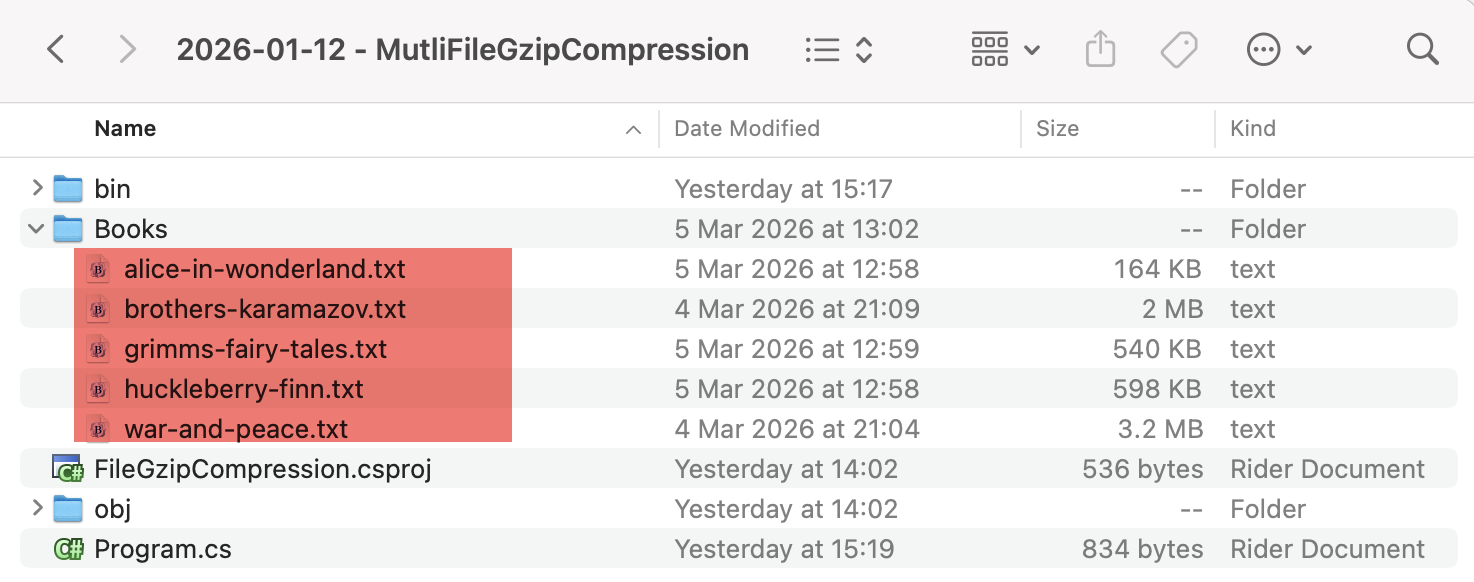
We will tackle the problem as follows:
- Create a
Tarfile from the source files. GziptheTarfile into a file.
The code is as follows:
using System.Formats.Tar;
using System.IO.Compression;
using System.Reflection;
using Serilog;

Log.Logger = new LoggerConfiguration()
    .WriteTo.Console()
    .CreateLogger();

const string sourceFilesDirectoryName = "Books";

// Extract the current folder where the executable is running
var currentFolder = Path.GetDirectoryName(Assembly.GetExecutingAssembly().Location)!;

// Build the intermediate paths
var sourceFilesDirectory = Path.Combine(currentFolder, sourceFilesDirectoryName);
var targetTarFile = Path.Combine(currentFolder, $"{sourceFilesDirectoryName}.tar");
var targetGzipFile = Path.Combine(currentFolder, $"{sourceFilesDirectoryName}.tar.gz");

// Get the files for compression
var filesToCompress = Directory.GetFiles(sourceFilesDirectory);

 // Create a stream, and use a TarWriter to write files to this stream
await using (var stream = File.Create(targetTarFile))
{
    await using (var writer = new TarWriter(stream))
    {
        foreach (var file in filesToCompress)
        {
            await writer.WriteEntryAsync(file, Path.GetFileName(file));
        }
    }
}

// Create a gzip stream for the target
await using (var gzip = new GZipStream(File.Create(targetGzipFile), CompressionLevel.Optimal))
{
    // Read the source file and copy into the gzip stream
    await using (var input = File.OpenRead(targetTarFile))
    {
        await input.CopyToAsync(gzip);
    }
}

Log.Information("Written {SourceFile} to {TargetFile}", sourceFilesDirectory, targetGzipFile);
Support for Tar is from the TarWriter class in the System.Formats.Tar namespace.
Rather than using a stream, the TarWriter also exposes a helper method - CreateFromDirectoryAsync, that allows you to directly create a Tar file from a folder. (There is also a synchronous version, CreateFromDirectory)
We can achieve the same result of a new Tar file as follows:
// Create the target tar file, with the folder as the root
await TarFile.CreateFromDirectoryAsync(sourceFilesDirectory, targetGzipFile, true);
There is no particular reason for using the current path. You can use a temporary directory as a staging area, using the Path.GetTempPath() method.
A third and more elegant solution is the following:
- Create a FileStream for the final gzip file
- Create a GzipStream from this
FileStream - Use a
TarWriterto write entries to thisGzipStream
This solution has the benefit of avoiding intermediate file generation.
The code is as follows:
// Create a stream for the target gzip file
await using (var fileStream = File.Create(targetGzipFile))
{
    // Create a GzipStream from the previous steam
    await using (var gzip = new GZipStream(fileStream, CompressionLevel.Optimal))
    {
        // Create a TarWriter with the GzipStrea,
        await using (var writer = new TarWriter(gzip))
        {
            // Write the files to the stream
            foreach (var file in filesToCompress)
            {
                await writer.WriteEntryAsync(file, Path.GetFileName(file));
            }
        }
    }
}
If we run this code, it should print the following:

And in our directory, we should be able to see the gzip file.

TLDR
You can create a gzip file from multiple source files by Tar-ing the files first using a TarWriter and then gzip-ing them using a GzipStream
The code is in my GitHub.
Happy hacking!