Configuring Microsoft Teams Webhooks for Channels
[Microsoft 365, Office 365, Teams]
In a previous post, some 6 years ago, “Posting Messages To Microsoft Teams With Code”, we looked at how to configure a Microsoft Teams channel to receive and process webhooks, typically for posting messages from third-party applications or a script.
Unsurprisingly, things are very different now, and some features have been deprecated.
This is the current way to achieve the same as of the time of writing this post.
First, identify the team you would like to receive the webhook for, then click the ellipsis to open the menu.
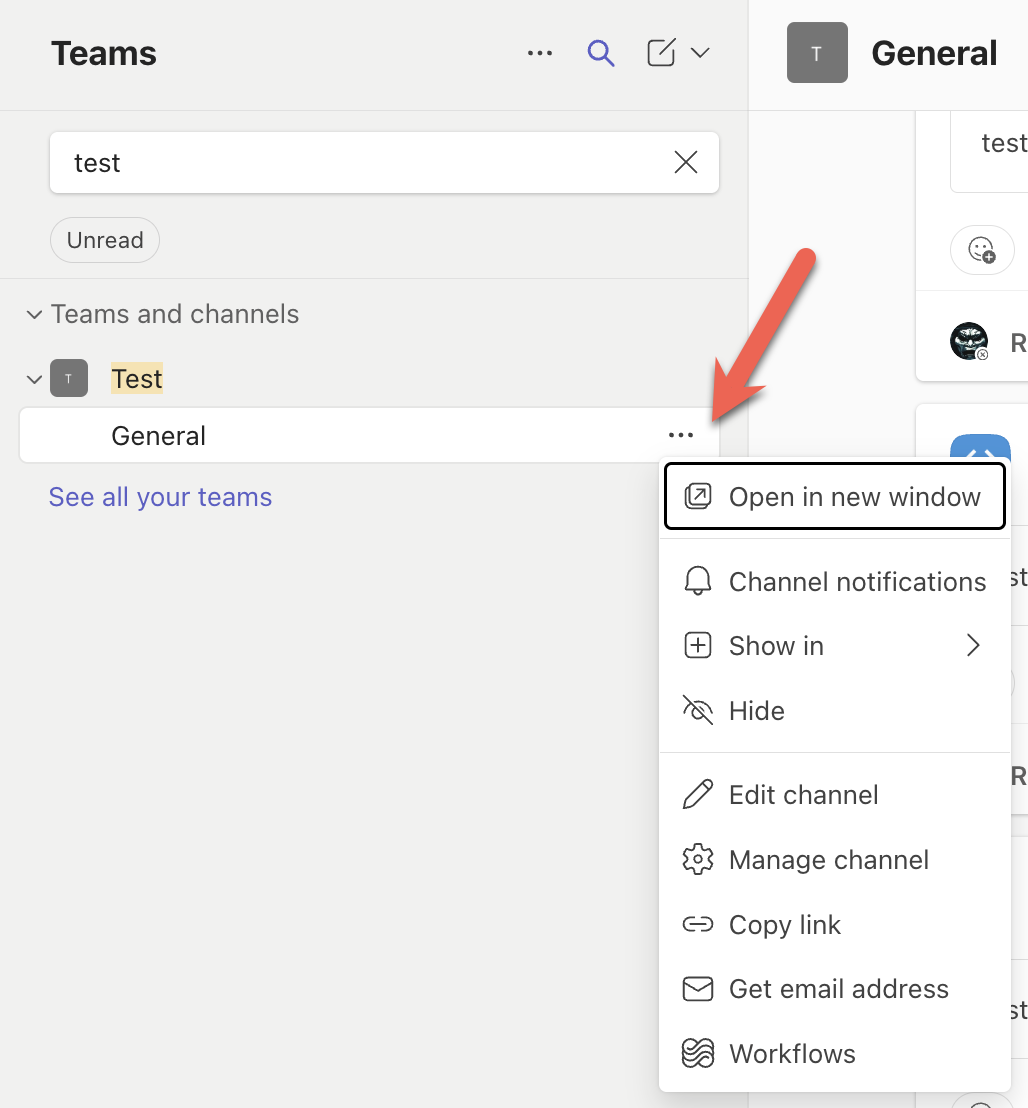
The new menu item is named Workflows. (It was Connectors before)
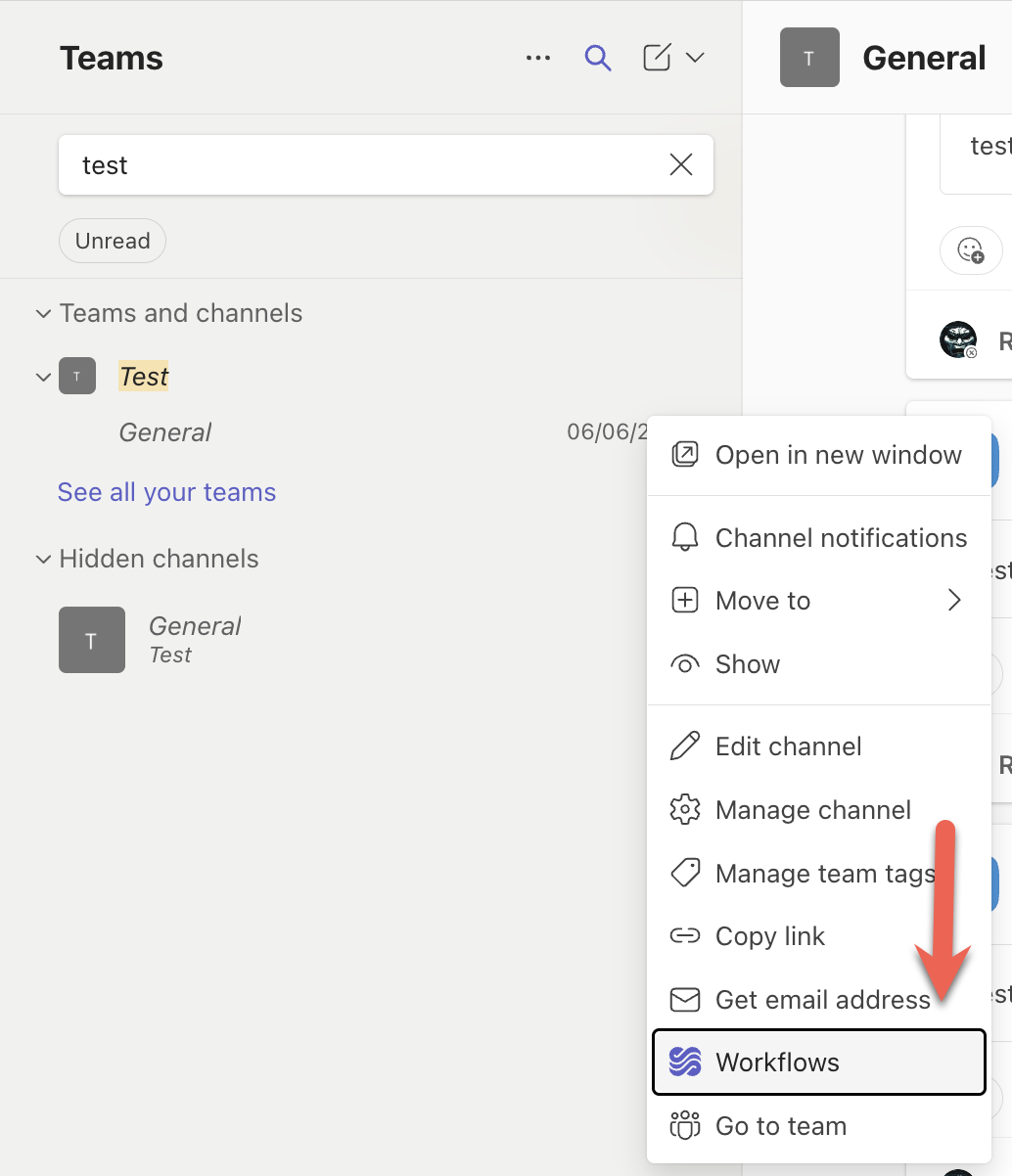
This will take you to a screen where you can choose from a list of available workflows.
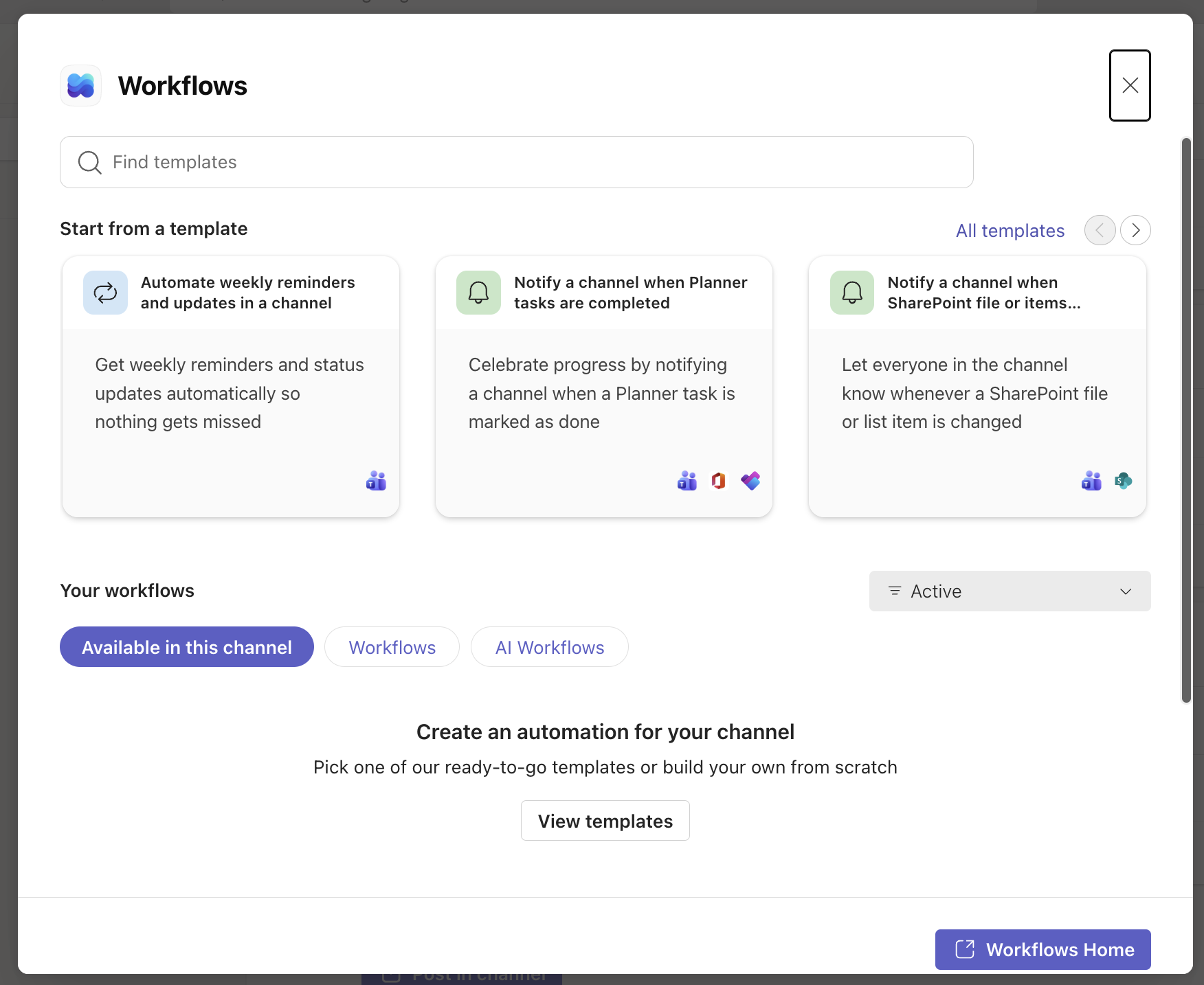
Rather than scroll, we can search for what we want:
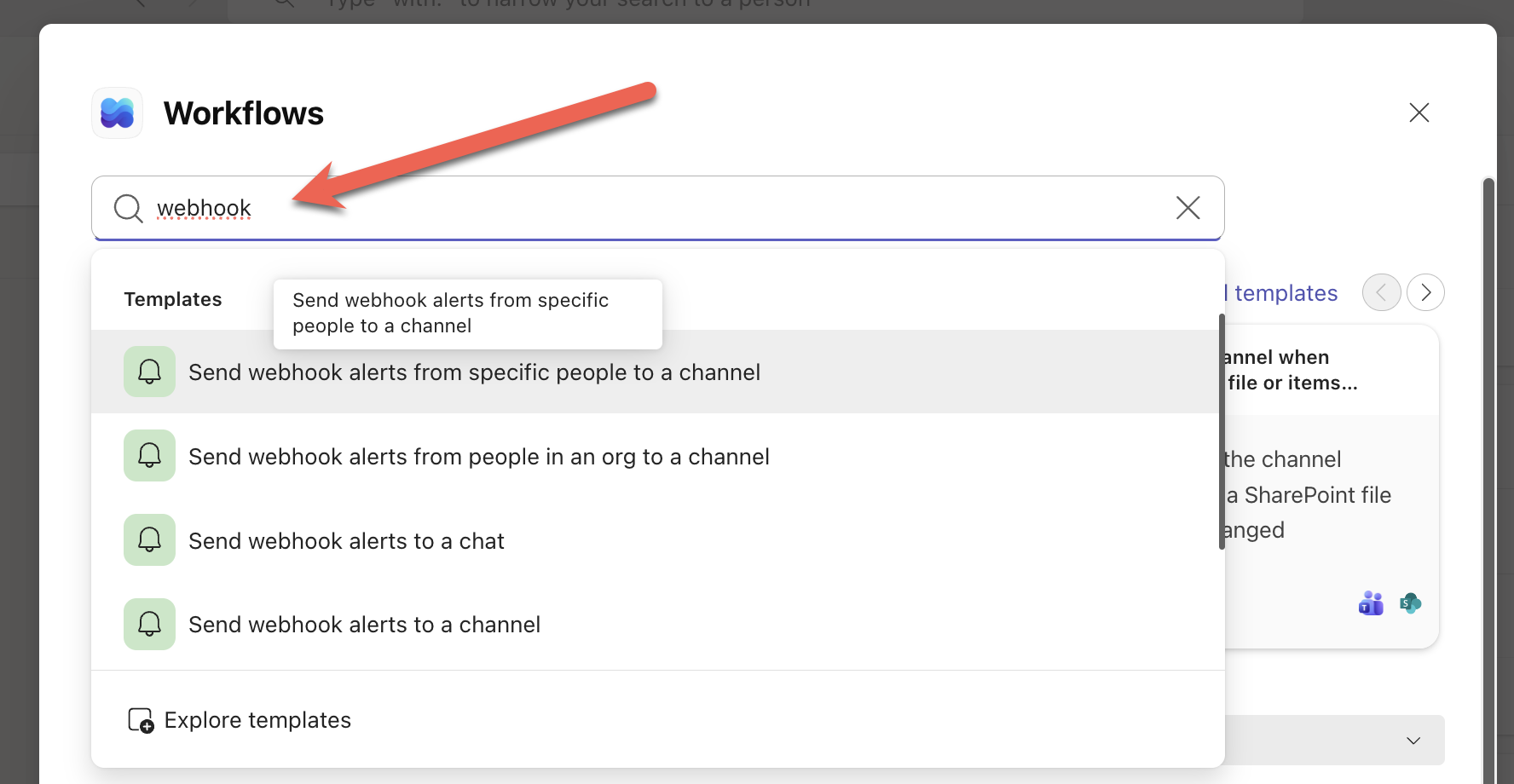
We want the last item, “Send webhook alerts to a channel”.
Next, we get taken to a screen to choose the channel.
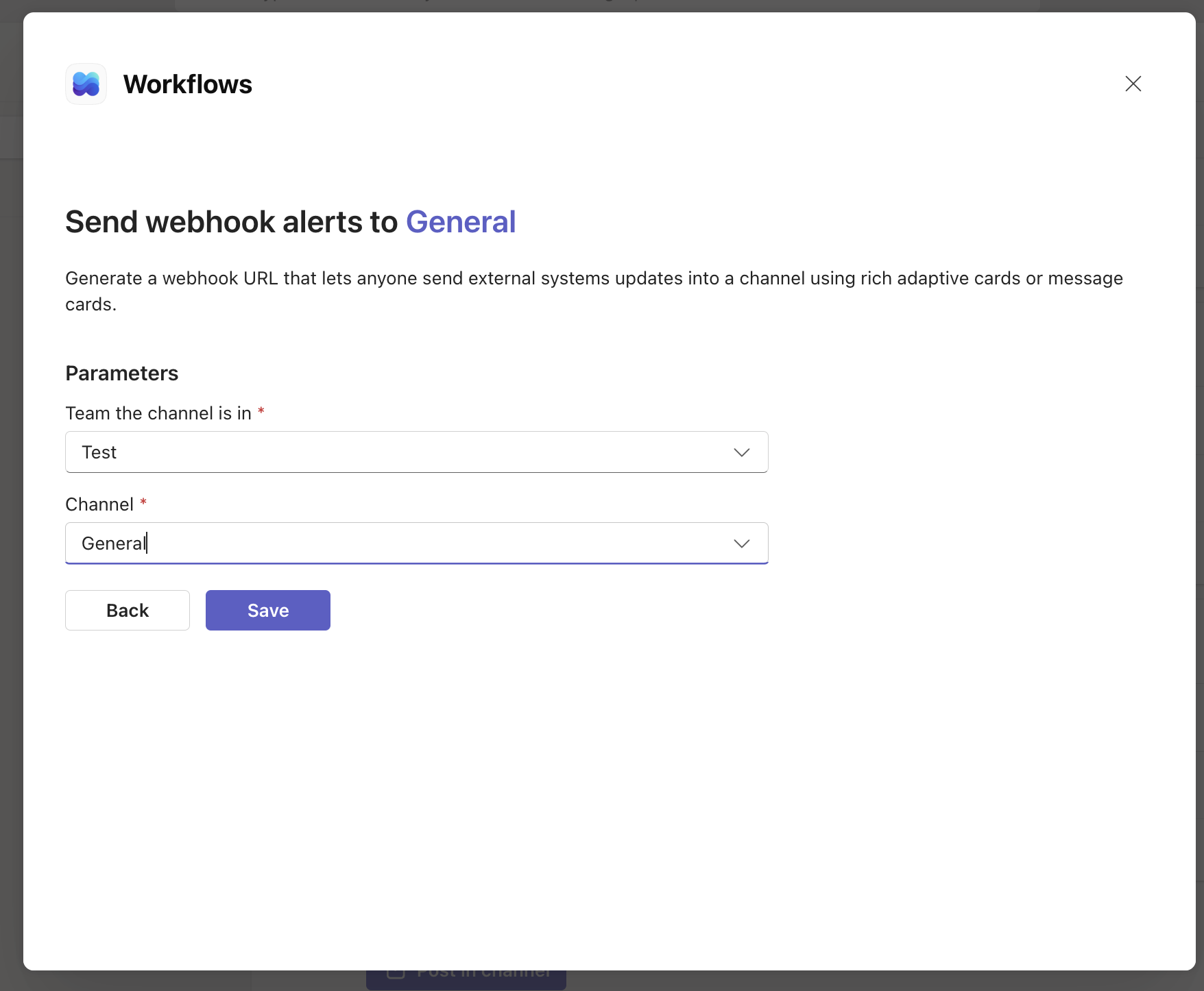
Once you save, you are taken to the final screen.
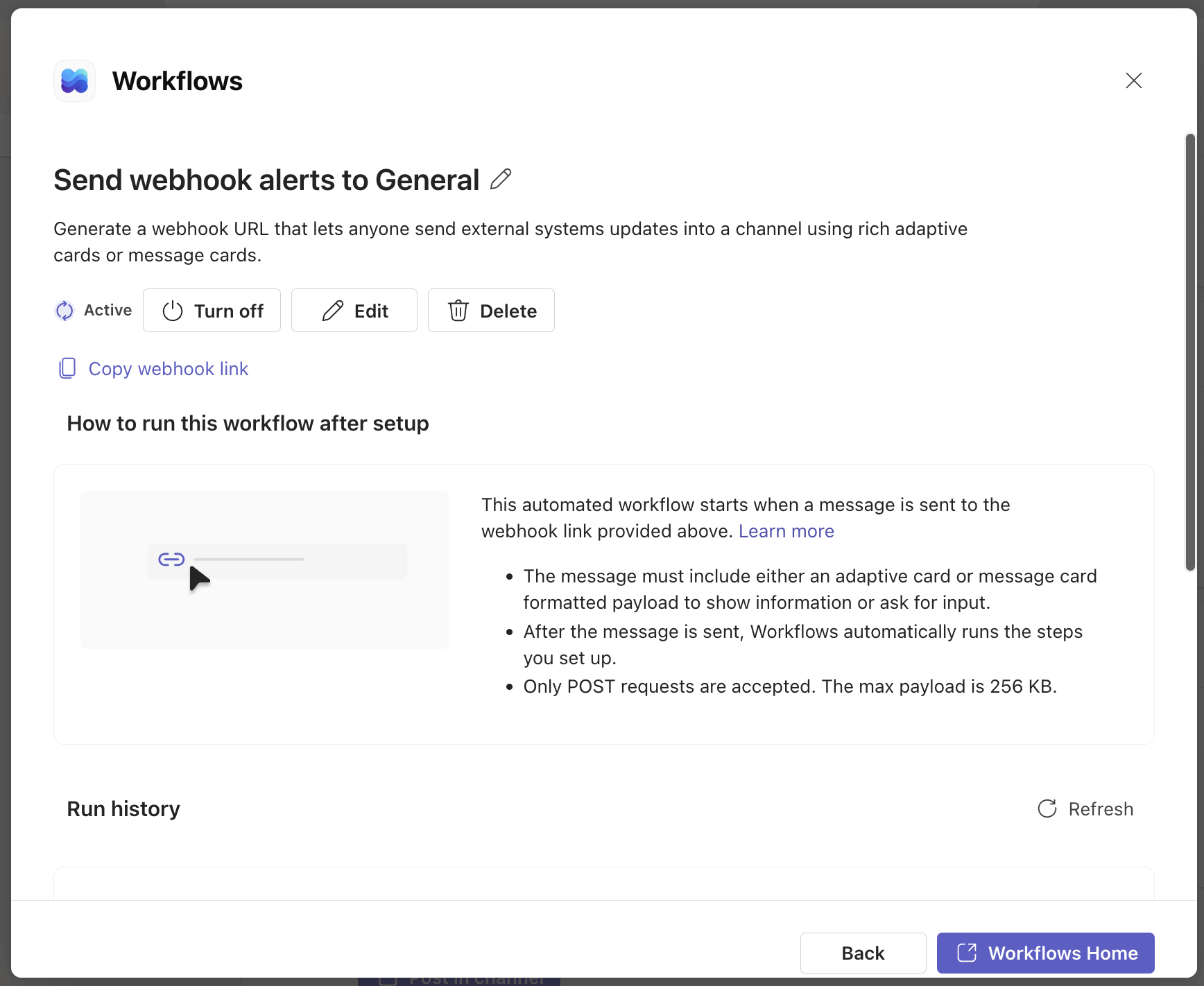
From here, we can access our webhook link.
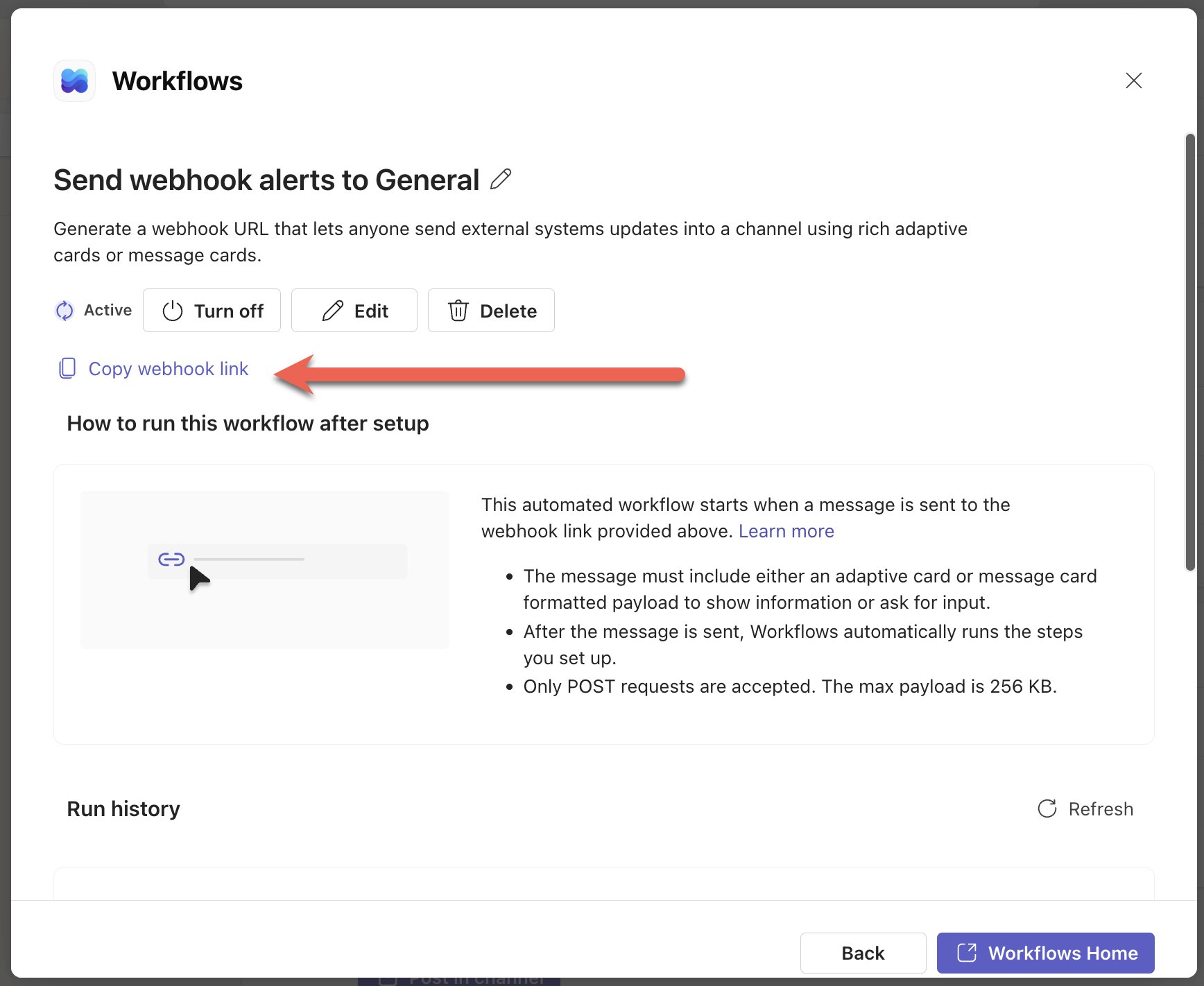
Copy this for subsequent use.
In our next post, we will look at how to post a message to a Teams Channel from code.
Happy hacking!