Using Eza And Aliases In Windows PowerShell
[Terminal, Command Line, Tooling, Windows]
Yesterday’s post, “Using Aliases To Improve Command Line Experience”, looked at how to use aliases to improve your terminal workflow. In particular, we looked at the z-shell and bash shell, both available in Linux, Unix, and macOS.
In this post, we will look at how to do the same in Windows with PowerShell.
To my pleasant surprise, eza is available in Windows
You can install it as follows:
winget install eza-community.eza
Winget will download and install the software.
You can also use Chocolatey instead.
You can check that it works by running the software.
eza
You should see something like this:
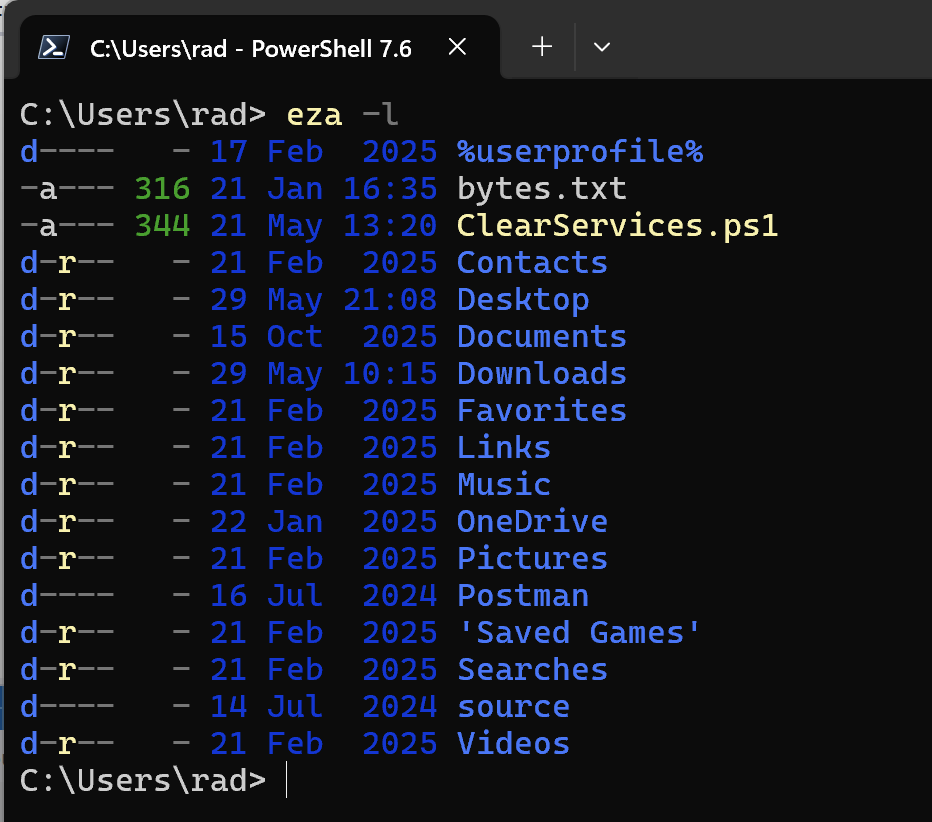
PowerShell supports aliases, using the set-alias cmdlet.
Similar to the approach on Unix, Windows, and macOS, we start by opening our profile:
nvim $profile
Neovim, mercifully, is also available on Windows, but you can use the editor of your choice.
Next, we configure eza.
# Delete the existing alias
Remove-Item Alias:\ls

# Define a function for ls
function ls {
    eza --long --icons=auto
}
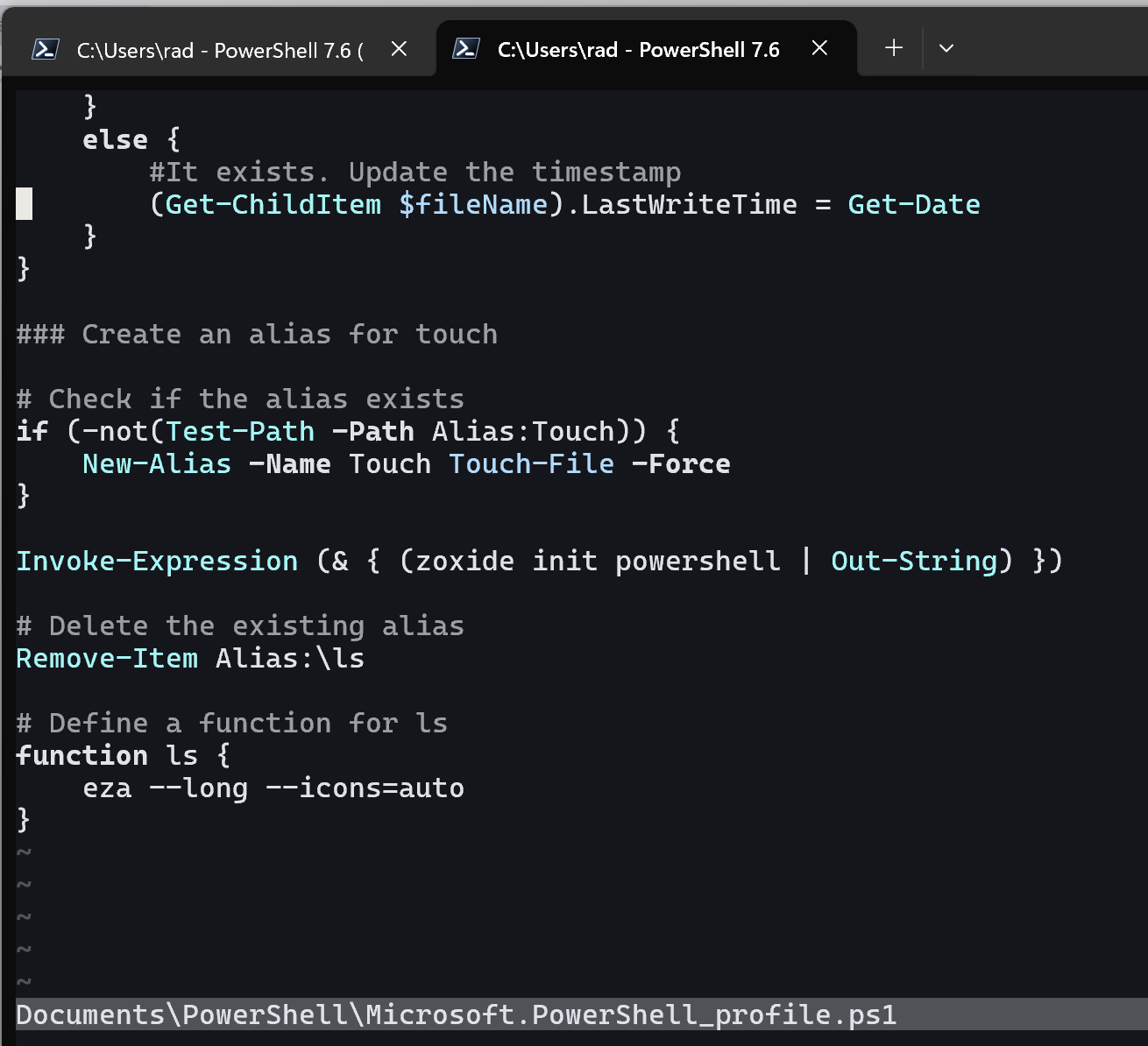
A couple of things to note:
lsin PowerShell is already an alias for Get-ChildItem. We first need to remove this alias using the Remove-Itemcmdlet- Much as PowerShell supports aliases, you cannot create an alias for a command with a parameter. You have to create a function instead.
Save and then reload the profile.
. $profile
Now we can verify if everything worked.
ls
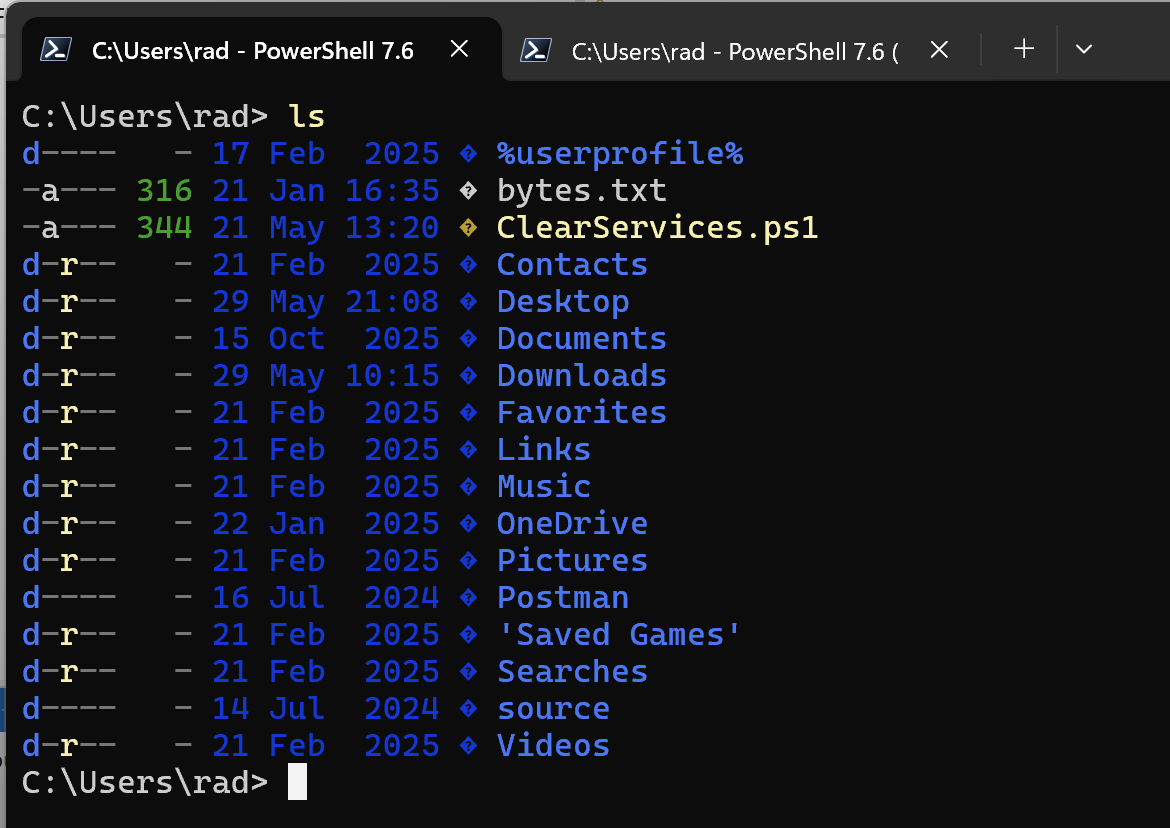
TLDR
Eza can also be configured in Windows to replace the built-in ls command.
Happy hacking!